Connectors
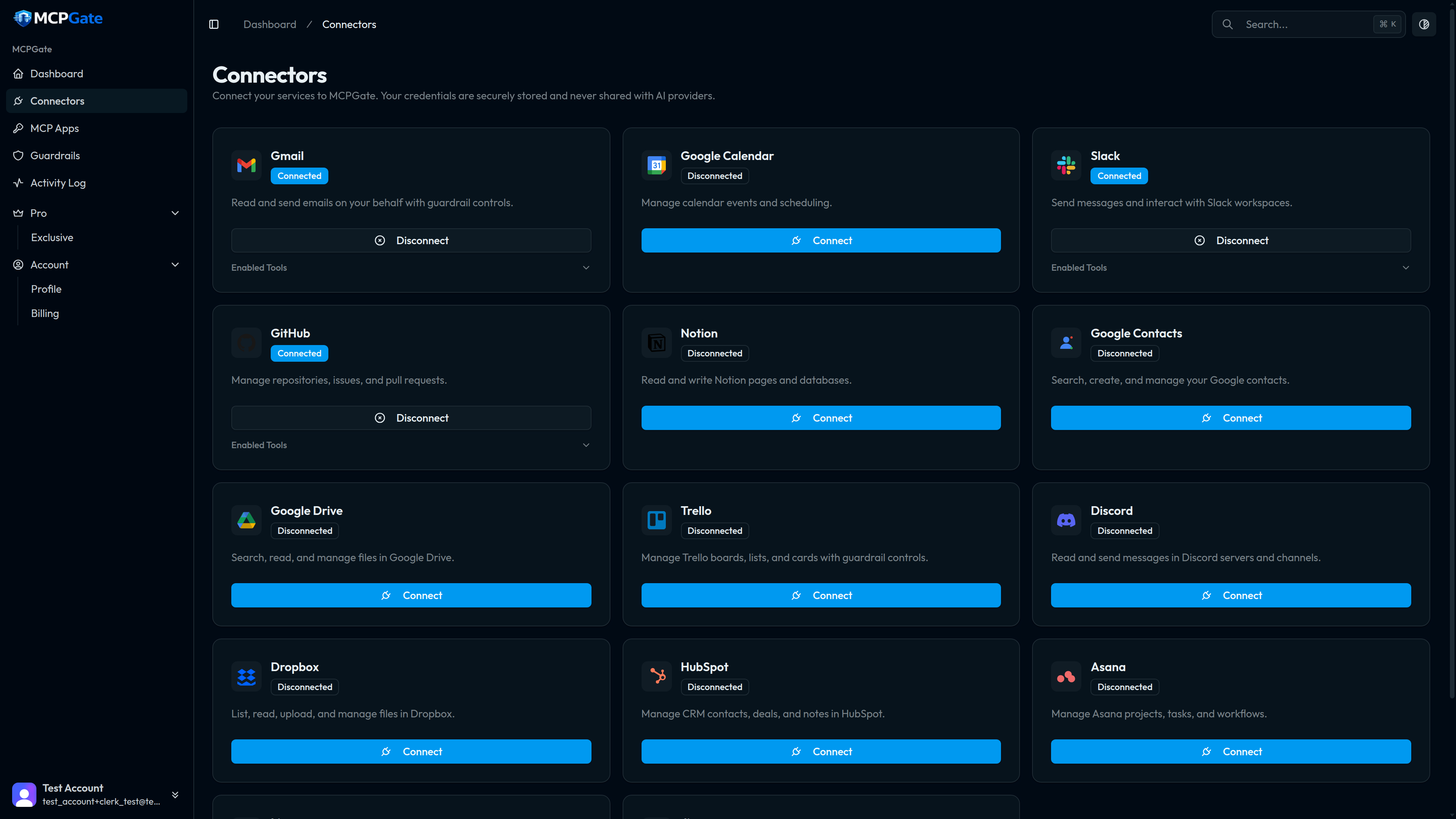
Connectors link your third-party accounts to MCPGate. Once connected, every MCP App you create can selectively expose those services — with full guardrail control over which tools are allowed and how they behave.
How connecting works#
Each connector uses a standard OAuth 2.0 flow. MCPGate handles the token exchange and stores the credentials in your encrypted vault — your AI clients never see them directly. When a tool call arrives, MCPGate injects the token, calls the third-party API, and returns the result.
- Go to Connectors in the dashboard.
- Click Connect next to the service you want to add.
- Approve the OAuth consent screen. You are redirected back automatically.
- The connector status changes to Connected. Its tools are now available in every MCP App.
Start here
Token management#
MCPGate stores OAuth tokens encrypted with AES-256-GCM. Tokens are refreshed automatically before they expire. You can revoke a connector at any time from the dashboard, which immediately deletes the stored credentials and disables all related tools across every App.
Available connectors#
MCPGate ships with 70 connectors covering 737 tools across twelve categories. Click a connector name for its full tool reference and guardrail recipes.
| Connector | Category | Tools |
|---|---|---|
| Gmail | 18 | |
| Google Calendar | 10 | |
| Google Contacts | 13 | |
| Google Drive | 15 | |
| Google Sheets | 10 | |
| Google Docs | 8 | |
| Microsoft Outlook | Microsoft | 14 |
| Microsoft Teams | Microsoft | 12 |
| Microsoft OneDrive | Microsoft | 12 |
| Microsoft OneNote | Microsoft | 10 |
| Slack | Messaging | 8 |
| Discord | Messaging | 7 |
| Telegram | Messaging | 10 |
| WhatsApp Business | Messaging | 9 |
| Twilio | Messaging | 9 |
| SendGrid | Messaging | 10 |
| Notion | Productivity | 7 |
| Trello | Productivity | 7 |
| Asana | Productivity | 8 |
| Airtable | Productivity | 11 |
| Todoist | Productivity | 10 |
| ClickUp | Productivity | 12 |
| Monday.com | Productivity | 10 |
| Basecamp | Productivity | 10 |
| Confluence | Productivity | 10 |
| GitHub | Development | 10 |
| GitLab | Development | 13 |
| Bitbucket | Development | 11 |
| Linear | Development | 8 |
| Jira | Development | 8 |
| PagerDuty | Development | 10 |
| Sentry | Development | 10 |
| Vercel | Development | 10 |
| Datadog | Observability | 10 |
| HubSpot | CRM | 8 |
| Salesforce | CRM | 14 |
| Zoho CRM | CRM | 11 |
| Pipedrive | CRM | 11 |
| Freshdesk | CRM | 11 |
| Dropbox | Storage | 7 |
| Box | Storage | 12 |
| Google Cloud Storage | Storage | 9 |
| AWS S3 | Storage | 10 |
| Stripe | Finance | 15 |
| QuickBooks | Finance | 12 |
| Xero | Finance | 11 |
| Mailchimp | Marketing | 11 |
| Twitter / X | Marketing | 10 |
| BambooHR | HR | 10 |
| Gusto | HR | 10 |
| Zoho Mail | Messaging | 10 |
| Zoho Books | Finance | 12 |
| Zoho Projects | Productivity | 11 |
| Zoho Desk | CRM | 12 |
| Zoho Invoice | Finance | 11 |
| Zoho Campaigns | Marketing | 10 |
| Zoho People | HR | 11 |
| Zoho WorkDrive | Storage | 12 |
| Zoho Sign | Productivity | 10 |
| Zoho Cliq | Messaging | 10 |
| Zoho Inventory | Commerce | 11 |
| Zoho Expense | Finance | 10 |
| Zoho Billing | Finance | 12 |
| Zoho Meeting | Productivity | 10 |
| Zoho Bookings | Productivity | 10 |
| Zoho Forms | Productivity | 9 |
| Zoho Sprints | Productivity | 11 |
| Zoho Recruit | HR | 12 |
| Zoho Analytics | Productivity | 10 |
| Zoho Creator | Development | 11 |
| Total | 737 |
Permissions and scopes#
MCPGate requests only the OAuth scopes needed to execute the tools in that connector. Scopes are listed on each connector's reference page. If you connect an account with restricted permissions, any tool that requires a missing scope will return an error rather than silently degrading.
Next steps#
- Read the per-connector reference pages for tool details and guardrail recipes.
- See MCP Apps to learn how to expose connector tools to your AI clients.
- See Guardrails to add allow/deny rules on top of individual tools.