Activity Log
The Activity Log is a real-time, filterable feed of every MCP tool call that passes through MCPGate. Every time an AI assistant calls a tool — whether the call is allowed or blocked — an entry is recorded with full context. This gives you a complete audit trail without any additional setup.
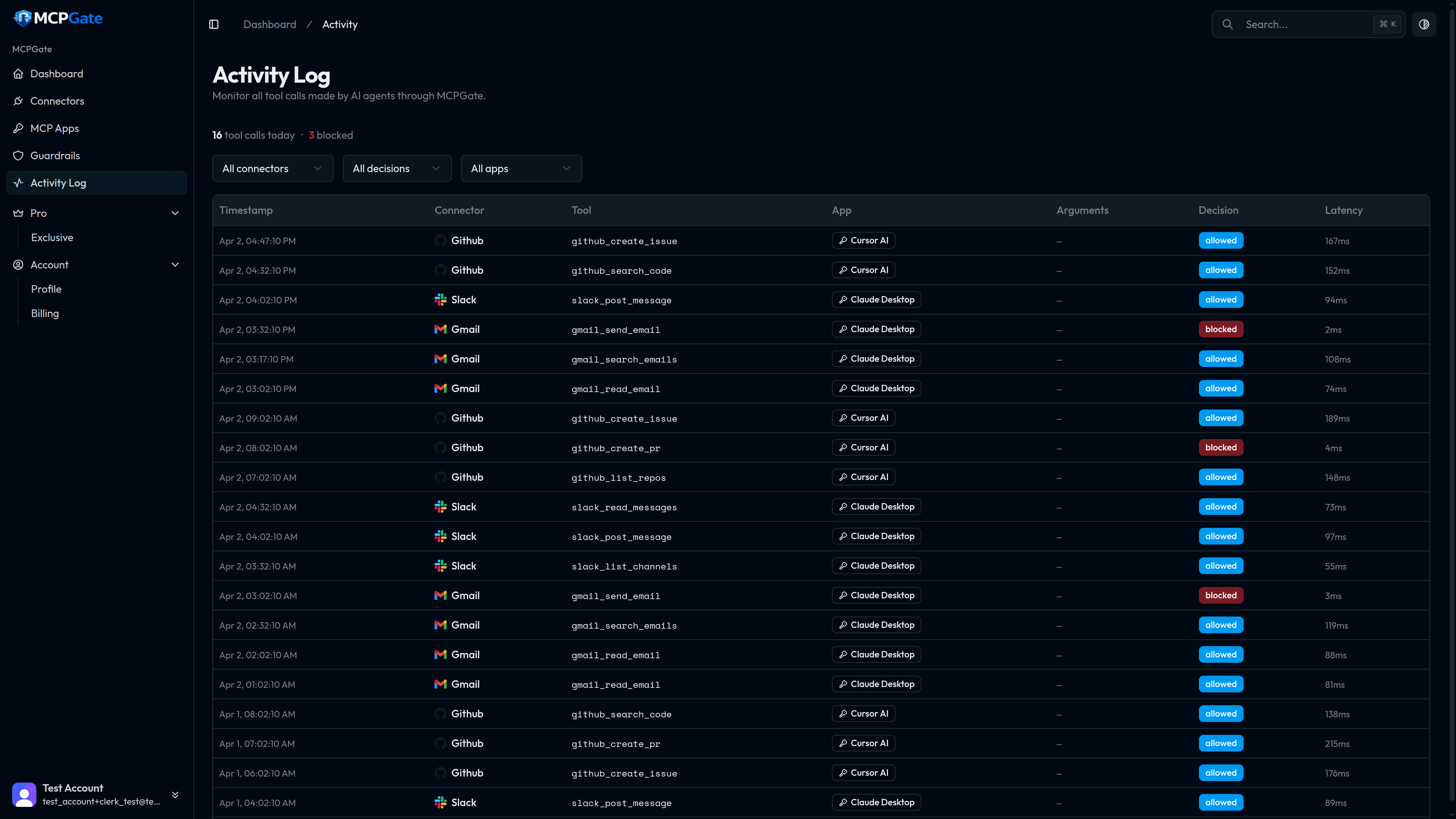
What Gets Logged#
Every log entry captures the following information:
- Timestamp — the exact date and time the tool call was made (UTC)
- Connector — which service the tool belongs to (Gmail, Slack, GitHub, etc.)
- Tool — the specific tool called, such as
gmail_read_emailorgithub_create_issue - App — which MCP App made the call (useful when you have multiple clients configured)
- Arguments — the parameters passed to the tool by the AI assistant
- Decision — Allowed (green) if the call went through, or Blocked (red) if a guardrail rule stopped it
- Block Reason— when blocked, the exact rule that triggered (e.g., “keyword match: ‘confidential’” or “rate limit exceeded”)
- Latency — how long the call took to complete, from receipt to response
Reading the Log#
Each row in the Activity table represents one tool call. The Decision column is the quickest way to spot issues:
- Allowed — the call passed all guardrail checks and the tool executed successfully
- Blocked — a guardrail rule matched and the call was denied before reaching the third-party API. The block reason column tells you exactly which rule fired.
Expand any row to see the full argument payload the AI sent. This is useful for debugging unexpected blocks — sometimes an AI includes a parameter value that happens to match a keyword rule.
Tip
Filtering#
Use the filter controls at the top of the Activity page to narrow the log:
- By connector — show only Gmail calls, or only GitHub calls
- By decision — show only blocked calls to review guardrail effectiveness, or only allowed calls for a clean audit
Log Retention#
Activity log retention depends on your plan:
- Free — 7 days of history
- Pro — 90 days of history
- Enterprise — 365 days of history
Entries older than the retention window are automatically deleted. If you need long-term audit storage, contact us about Enterprise export options.
What Is Not Stored#
MCPGate logs tool calls, not content. The log records the tool name, arguments (the parameters the AI passed), and the decision. It does not store the response data — email bodies, Slack message text, file contents, or any other data returned by the third-party API. Arguments are stored to enable guardrail auditing; they are encrypted at rest.