MCP Apps
An MCP App represents one AI client connected to MCPGate. Each app gets its own API key, its own set of enabled tools, and its own guardrail policy. Apps are how you give different AI clients different levels of access to your connected services.
Why multiple apps?
What is an MCP App?#
Think of an app as a scoped view of your connected services. When you create an app, you choose which connector tools to expose and optionally configure guardrails on top. The app then generates a single MCP endpoint URL you paste into your AI client.
- Dedicated API key — each app has a unique
mgw_key. - Tool access control — enable only the tools the client needs.
- Guardrail policy — per-app allow/deny rules on tool parameters.
- Activity log — every tool call is recorded per-app for audit.
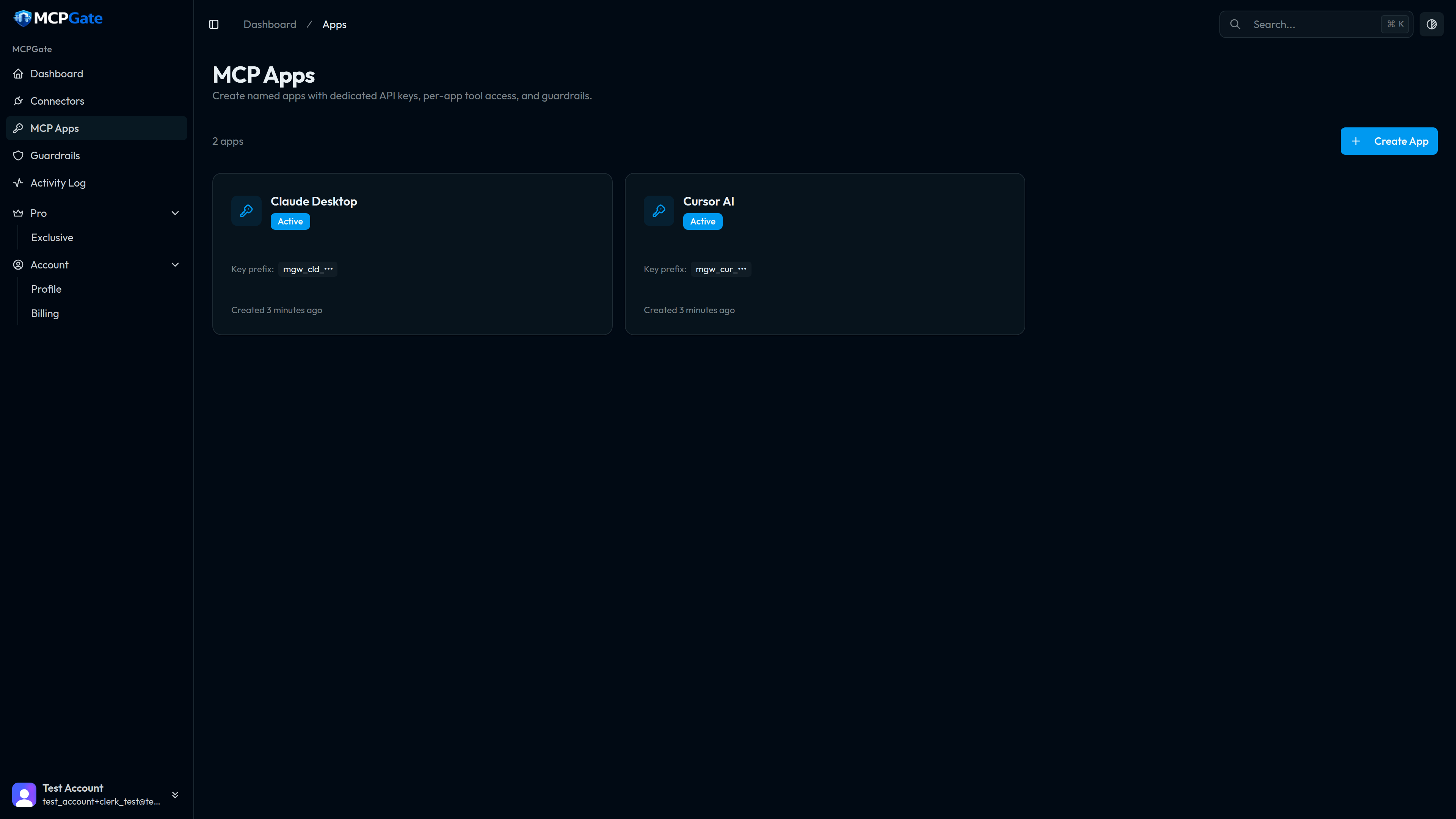
Creating an app#
Open the Apps page
Click New App
Copy your API key
mgw_ API key once. Copy it immediately — it cannot be shown again. You can regenerate it later from the app settings if needed.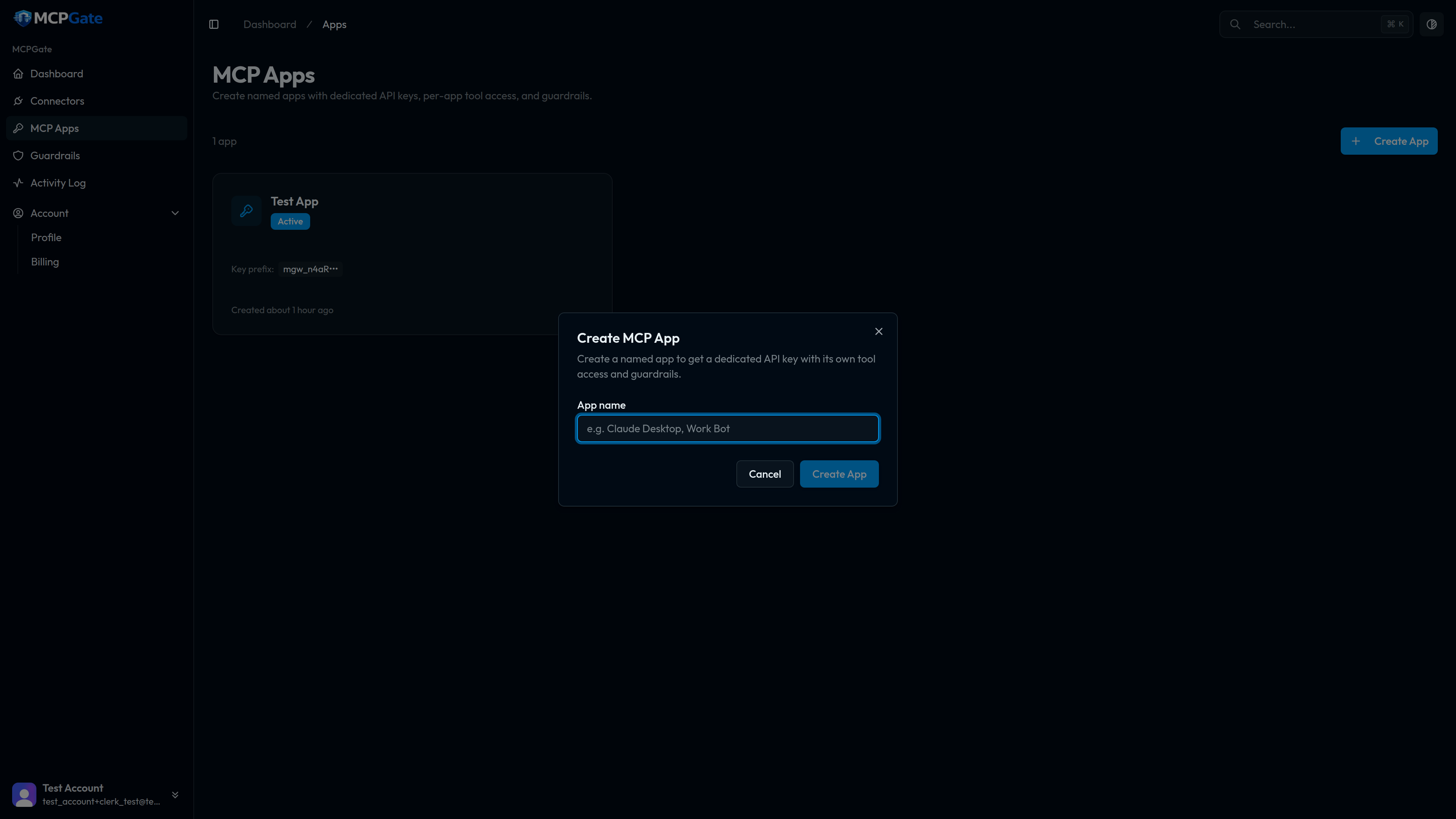
Paste the MCP URL into your client
https://mcpgate.sh/mcp/mgw_yourkeyPaste this as the MCP server URL in your AI client (Claude Desktop, Cursor, etc.).
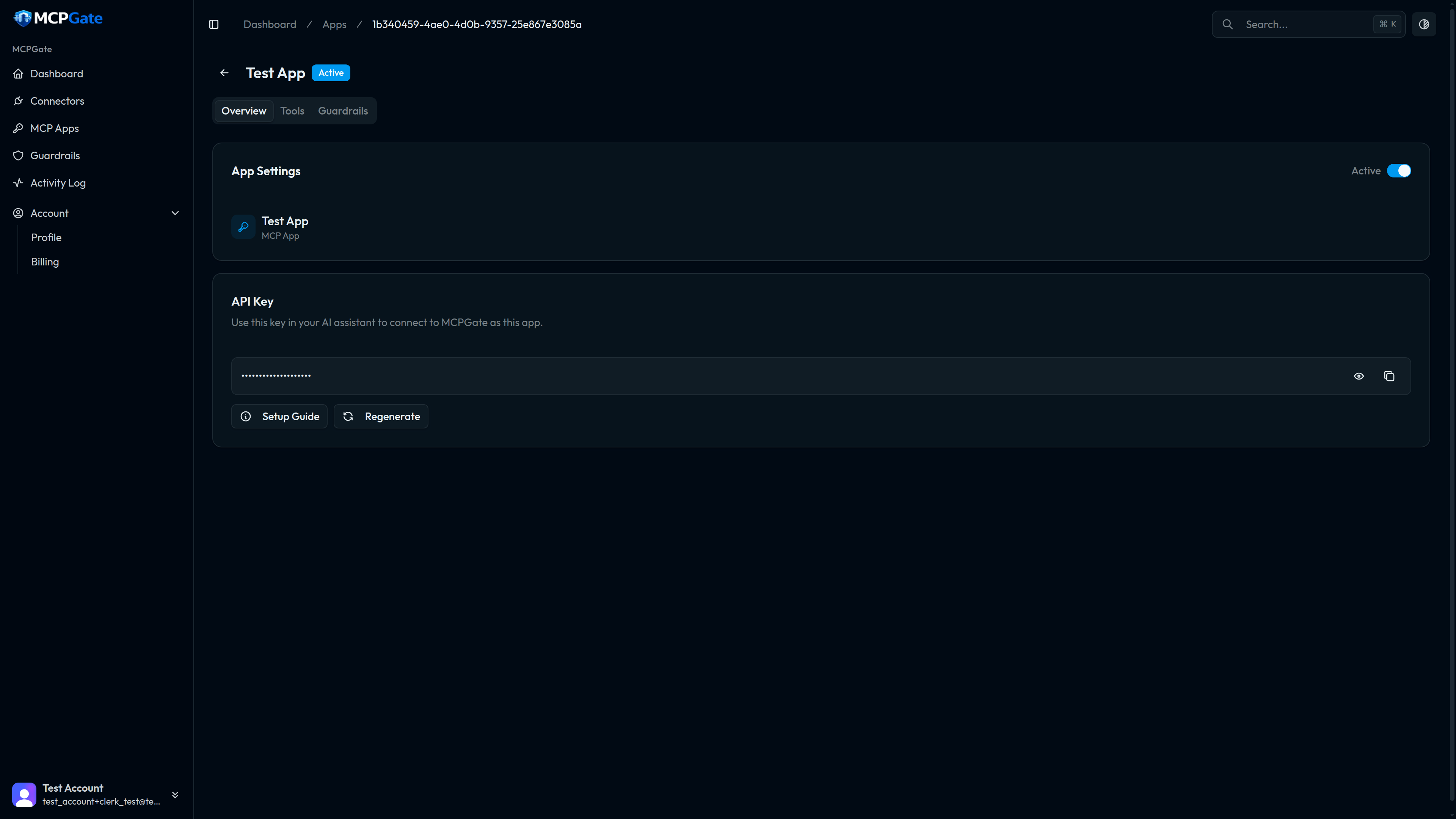
App overview#
The app overview page shows the app's status, endpoint URL, a redacted API key (click to reveal last 4 characters), and quick links to the tools and guardrails tabs.
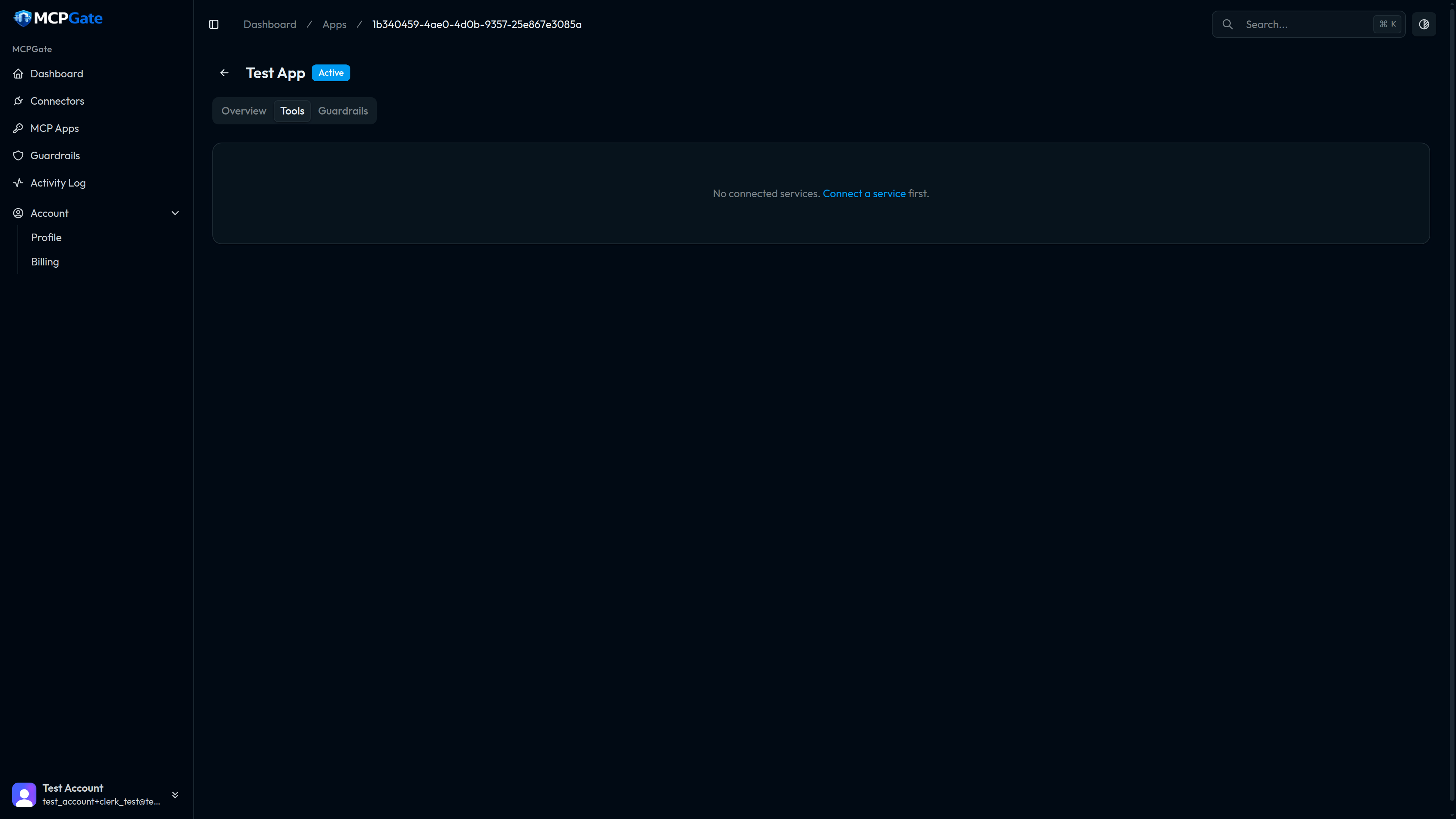
Managing tool access#
The Tools tab lists every tool from all connected connectors. Toggle tools on or off to control exactly what this app can do. Changes take effect immediately — no restart or re-deploy required.
Start minimal
Guardrails#
The Guardrails tab lets you attach rule templates to individual tools. Rules are evaluated on every tool call before the API request is made. See the Guardrails Overview for full details.
Deleting an app#
Open the app settings (gear icon) and click Delete App. This immediately invalidates the app's API key and removes all guardrail rules. The connected connectors are unaffected — only this app's access is revoked.