Claude Desktop
Connect Claude Desktop to MCPGate in seconds using OAuth — no API keys, no JSON config files, no manual credential management. Claude Desktop handles authentication automatically by opening a browser window where you approve access.
Note
Prerequisites
- Claude Desktop app installed (latest version)
- An MCPGate account with at least one service connected
- A Claude Pro, Max, Team, or Enterprise subscription
Setup
Open Claude Desktop Settings
In Claude Desktop, go to Settings and navigate to the Connectors section.
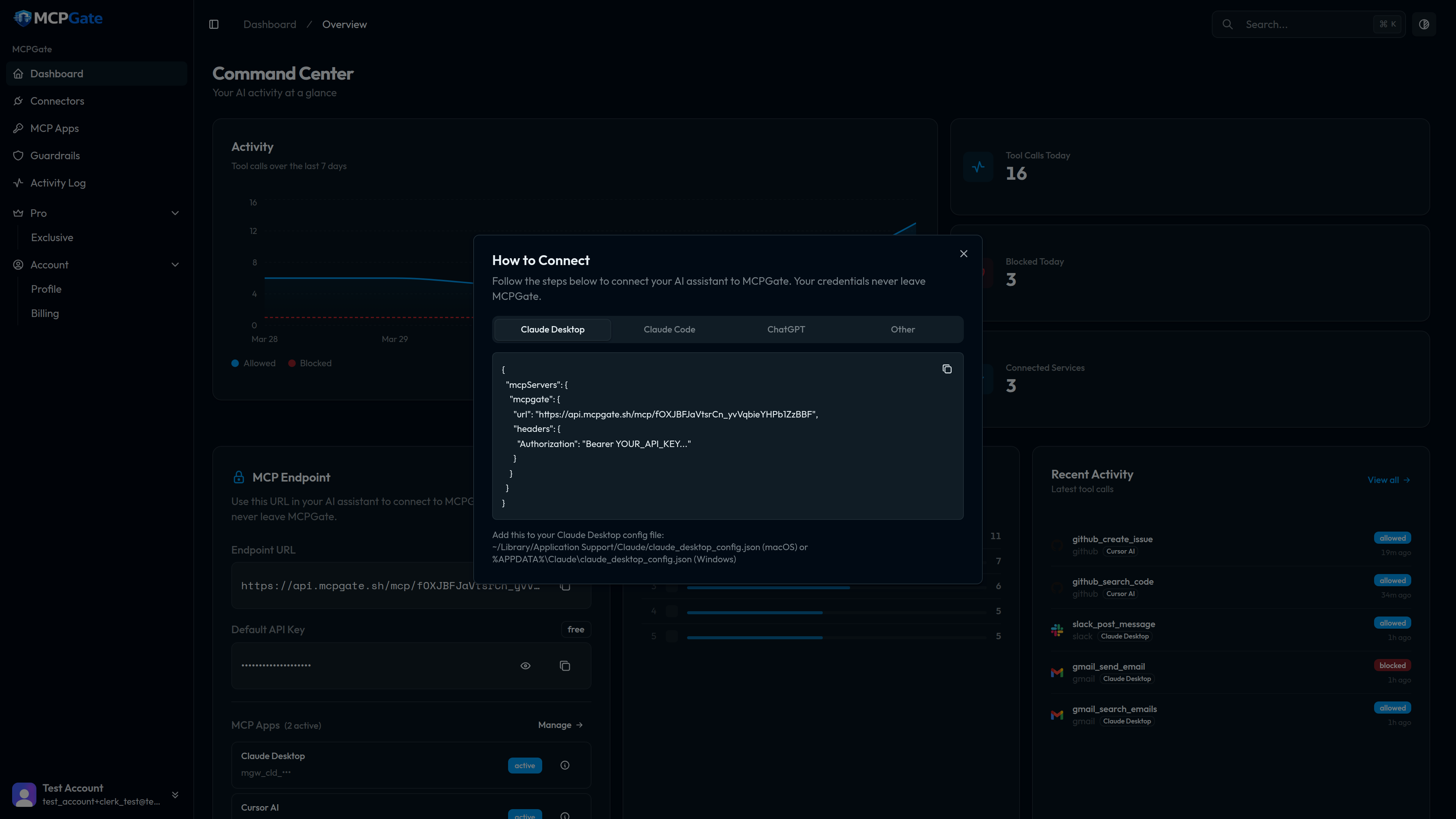
Add a custom connector
Click Add custom connector (or the + button). A dialog will appear asking for the connector URL.
Paste the MCPGate URL
Enter the MCPGate endpoint URL:
https://mcpgate.sh/mcpTip
Complete OAuth in your browser
Claude Desktop will open your browser to the MCPGate authorization page. Log in to your MCPGate account and click Approve. Once approved, return to Claude Desktop — the connector is now active.
Verify the connection
Start a new conversation in Claude Desktop. Click the tools icon (hammer) in the input bar. You should see MCPGate listed with all the tools from your connected services. Try asking Claude to list your recent emails or GitHub issues to confirm everything is working.
Troubleshooting
“Connection failed” error
Make sure you are using the exact URL https://mcpgate.sh/mcp with no trailing slash or extra path segments. If the OAuth window did not open, try removing and re-adding the connector.
No tools showing in the tools menu
Verify that at least one connector is connected on the Connectors page and that the MCP App has those connectors enabled. The app must have tools explicitly allowed — a freshly created app starts with all tools denied until you configure its allowlist.
Tools appear but actions are blocked
A guardrail rule is blocking the action. Open the Activity log in your dashboard, find the blocked call, and read the block reason. Adjust the guardrail rule or remove it if the restriction is too strict.